University of North Texas

Virtual Labs
Disclaimer: Multi-factor Authentication (mfa.untsystem.edu) needs to be set up and installed on your phone before you can access the virtual labs.
Citrix Virtual Lab
Remote access to applications is provided by our UNT online virtual lab powered by Citrix. Find this lab here: https://myuntlab.unt.edu/
Provide Virtual Lab feedback here!
Horizon Virtual Lab Special Class Access
Remote access to G. Brint Ryan College of Business applications is provided by our Horizon virtual desktop system. You can connect to different "pools" of virtual machines, based on your entitlements, from any internet connected computer. Specialized Classes at present are BCIS 3680, BCIS 4630, BCIS 4660, BCIS 4680, BCIS 4740, and BCIS 5740.
VPN
You must connect to the UNT VPN before connecting to Horizon.
- Navigate to untvpn.unt.edu
- Log in with your EUID and password.
- Select GlobalProtect agent on the top right and follow the instructions to install the client.
- When you run GlobalProtect enter untvpn.unt.edu and click connect.
Connection Instructions
- Navigate to RCoB-horizon.unt.edu to download and install the latest version of the Horizon client appropriate to your system
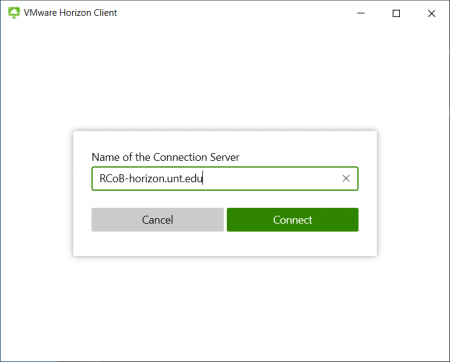
- Set the Connection server to RCoB-horizon.unt.edu
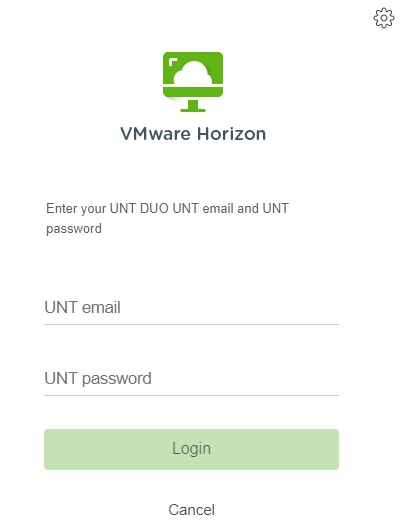
- Log in with your EUID and password, making sure you change the Domain to STUDENTS.
- You should then see a selection dialog similar to the following based on the class
you are enrolled in.
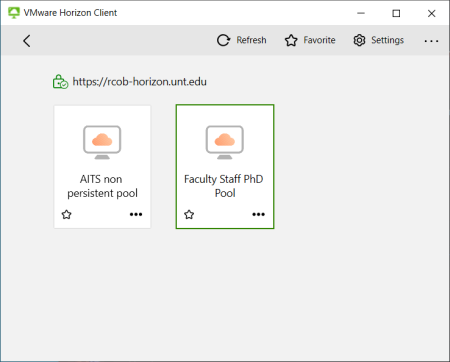
- You can set the display settings by right-clicking on the pool. We suggest you change
the display to Window if you plan to switch back to your home/local machine.
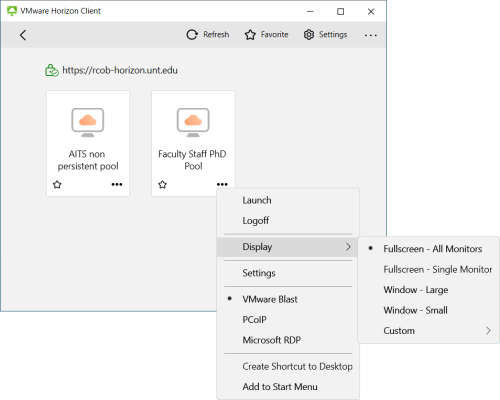
- Double-click the icon and the Horizon Client will then open in a new window to the virtual machine.
- When finished with your session, simply close the Horizon Client window and it will disconnect you from the desktop.
Disclaimer: Do not use Horizon for time sensitive or last minute projects. The Lab Desktop machines are not persistent. This means anything you store on them will be gone the next time you use a machine. Please use other sources of storage for your files.
Disabling Certificate Verification- Mac only
If while using a Mac you encounter an error regarding the server certificate and are unable to access Horizon, you will need to do the following
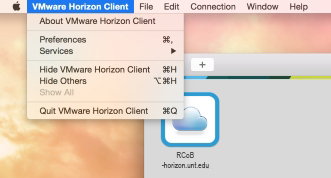
- Navigate to the Horizon Client menu in the upper left hand of the screen, and click
on “preferences”.
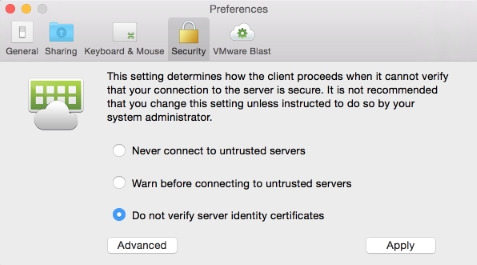
- Navigate to the “Security” tab and select the check button that says “Do not verify
server identity certificates”. Hit apply and then retry your connection.
Connecting a USB storage device to Horizon
- Make sure your USB device is plugged in.
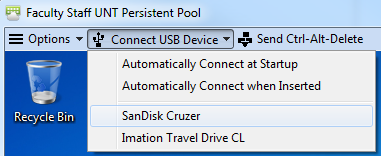
- Click on Connect USB Device at the top of the Horizon window.
- Select your USB device from the list.